Home › For your watch › Watch faces for the Garmin Venu 3 and Venu 3S
Watch faces for the Garmin Venu 3 and Venu 3S
The Venu 3 is a 454 × 454 px round AMOLED watch with a touchscreen and three buttons; the Venu 3S is the 41 mm version at 390 × 390 px. Both run Connect IQ 5.2 or newer and Garmin quotes up to 14 and 10 days of battery in smartwatch mode, dropping to up to 5 days with Always On. A good face for the Venu 3 is sharp at 454 px, keeps its always-on layout under Garmin's 10% luminance rule without treating that limit as a five-day battery guarantee, and does not hide its settings behind a phone app when a tap would do.
Which Venu 3 do you have?
| Model | Case | Screen | Resolution | Connect IQ | Smartwatch battery | Always On battery |
|---|---|---|---|---|---|---|
| Venu 3 | 45 mm | 1.4 in AMOLED | 454 × 454 | 5.2+ | up to 14 days | up to 5 days |
| Venu 3S | 41 mm | 1.2 in AMOLED | 390 × 390 | 5.2+ | up to 10 days | up to 5 days |
Battery figures are Garmin's, from the owner's manual. Both models install the same Connect IQ faces; a face must ship fonts and layout for both 454 and 390 px to look right on each. Looking at the newer model? See the Venu 4 page.
Kadran faces for this watch
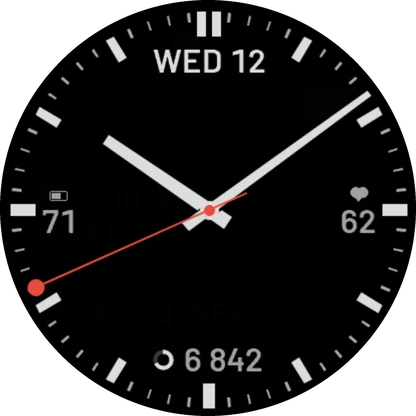
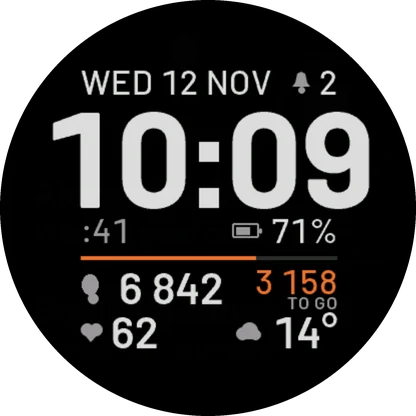
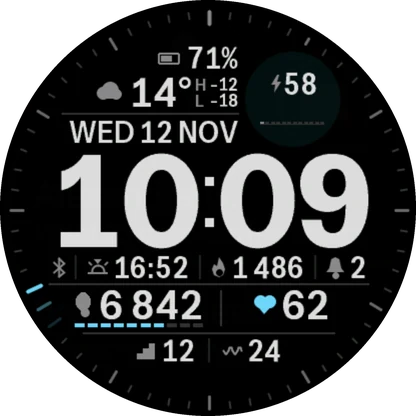
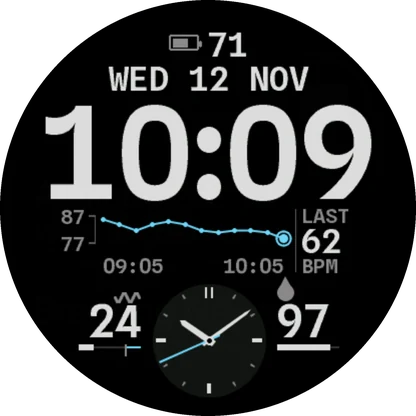
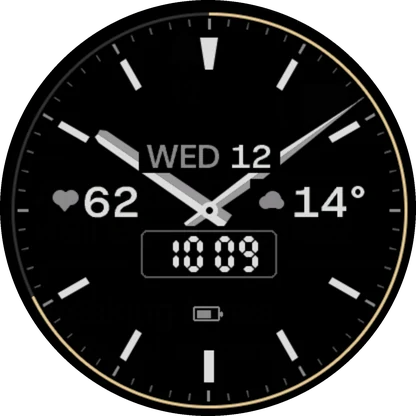
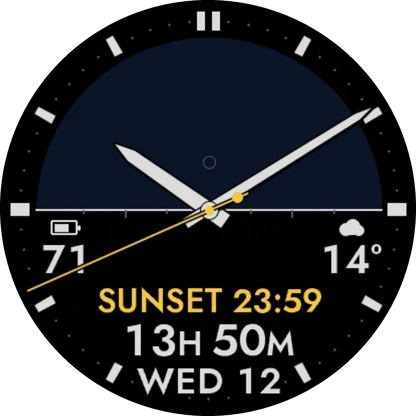
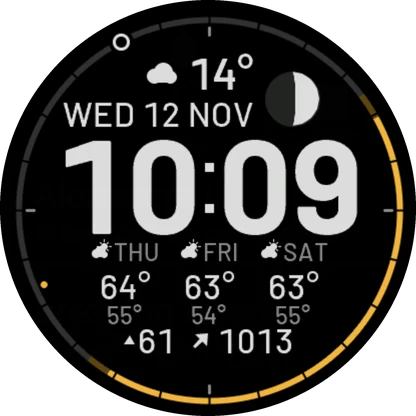
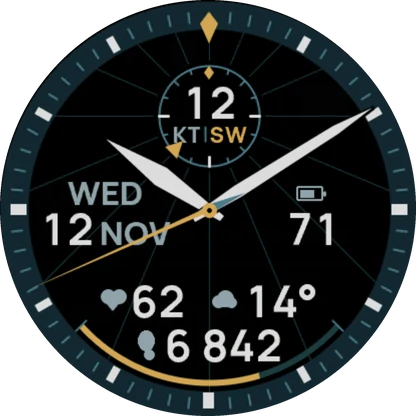
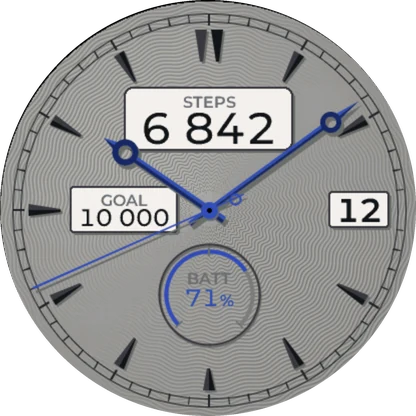
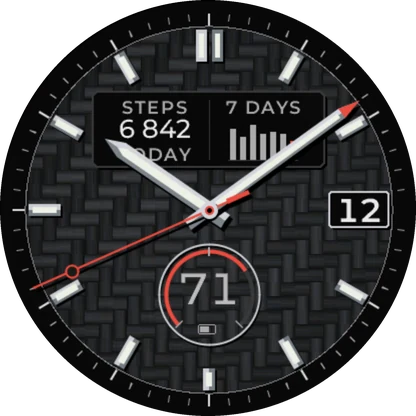
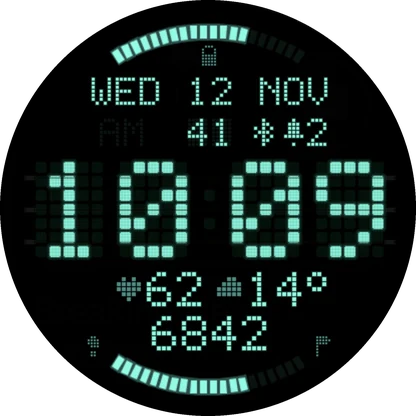
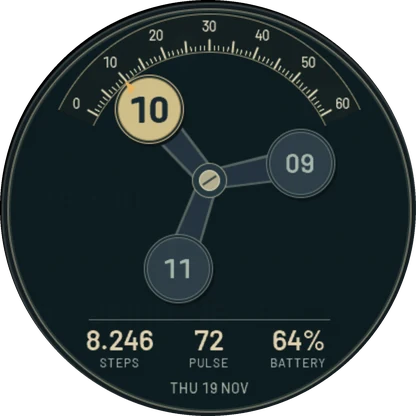
34 of 38 Kadran faces support this model. Explore each design, its compatibility and simulator AOD measurements.
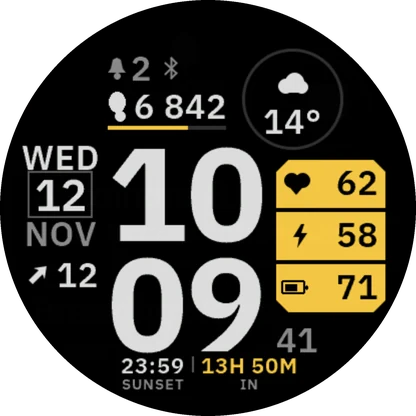
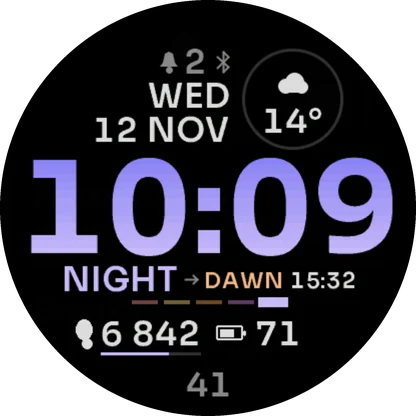
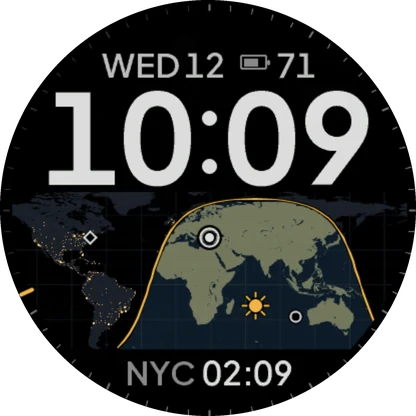
Mechanical
Instrument
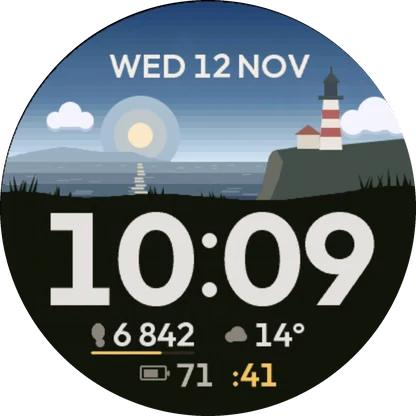
Sky and sea
Motion
Sport and outdoor
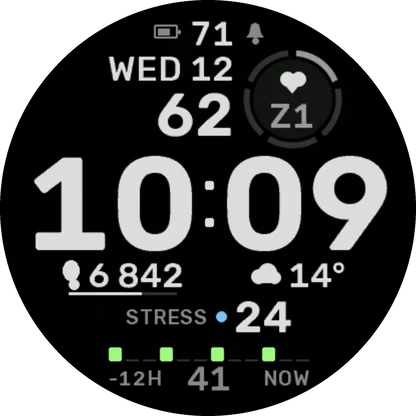
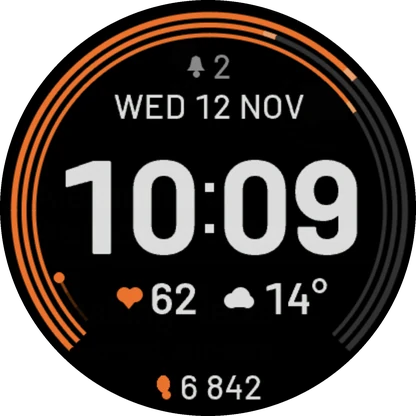
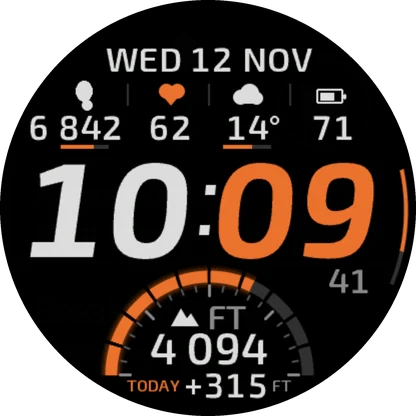
Atelier
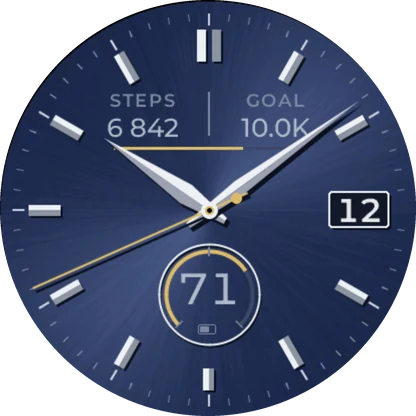
Glow
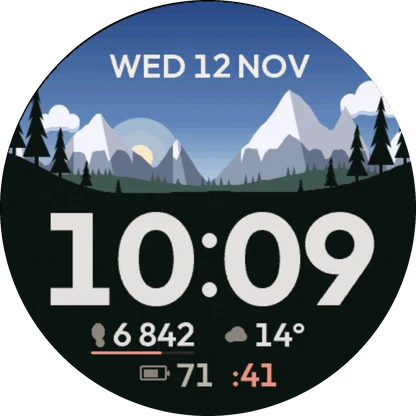
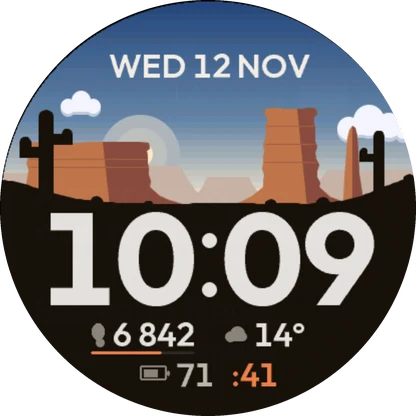
Landscape
Kip
What matters on this screen
- Resolution. 454 px is among the largest on any Garmin. Faces drawn for 416 px and stretched look slightly soft; faces with fonts built for 454 px stay crisp.
- Always On is the selling point and the cost. Garmin's own numbers show Always On cuts battery from 14 to 5 days. A sparse layout can reduce display use, but does not guarantee 5 days of battery life. The rule is explained in the always-on guide.
- Touch. The Venu 3 is operated by touch, so faces may offer tap targets. They are convenient but not essential; the settings that matter should also be in the Garmin Connect app.
- Health data. Venu owners use Body Battery, sleep score and HRV more than runners do. Faces that let you put those in a field, not only steps and heart rate, fit the watch.
- Everyday look. The Venu 3 is the dress-watch end of Garmin's range. Dashboards of eight fields look out of place; two to four fields and one accent colour fit.
Our pick: Kadran Ridge
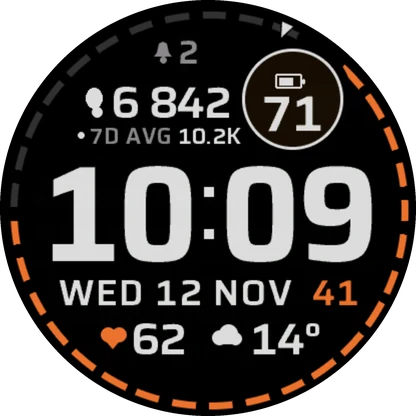
Ridge on the Venu 3 uses fonts built for 454 px and the same layout as on every other size: hour and minute digits at 22% of the screen height, a 32-segment step ring around the edge, battery in a round window at the top right, heart rate and weather below the time, date and seconds beside it. Eight accent colours, three always-on tints. In Always On, the layout becomes outlined gray digits plus the date and battery, shifting 3 px every minute, measured at 5.7% average luminance on the reference layout. Settings are in the Garmin Connect app.
Free faces worth knowing
- Garmin's built-in faces. The Venu 3 ships with several analog and digital faces with selectable data and colours, all compliant with Always On. Hold the lower button → Watch Face to browse them.
- Face It (free, Garmin). Build a face from a photo on the phone; works in Always On with Garmin's own dimming.
- GLANCE and Crystal are the two long-running free third-party options with 454 px builds; GLANCE for very large digits, Crystal for data density. Test either in Always On for two minutes before trusting it overnight.
How to change the face
From the watch face, hold the lower button, select Watch Face, swipe left or right to scroll, and tap the face you want. Connect IQ faces appear after Garmin's own. Faces are installed from the Connect IQ Store app on the phone; the steps and fixes are in the install guide.
Always On on the Venu 3
Hold the lower button → Settings → System → Display → General Use → Always On. Garmin describes it as keeping the watch face data visible while turning down brightness and background. The same path under During Activity sets the behaviour during workouts. Garmin's quoted Always On battery life is up to 5 days on both models.
FAQ
Does the Venu 3S need different faces than the Venu 3?
No, the same Connect IQ face installs on both, but the developer has to support the 390 px screen as well as 454 px. Check the face's device list for "Venu 3S" explicitly.
Why does my Venu 3 screen go black in Always On with some faces?
Garmin's burn-in protection switches a face off in low-power mode when it exceeds about 10% of screen luminance. Garmin's own faces stay on; third-party faces without a dedicated always-on layout do not. The always-on guide provides initial diagnostic checks.
Can a face show Body Battery or sleep score on the Venu 3?
Yes, if the developer exposes them as field options. Connect IQ 5.2 and later provide them through complications. Ridge shows heart rate and weather by default; Body Battery, stress and Pulse Ox can be chosen for its fields, on the watch or in the Garmin Connect app.
Will a third-party face shorten the 5-day Always On battery?
Only if it draws more than necessary. Luminance alone does not establish energy use; no hardware comparison with a built-in face is claimed here. A face that keeps the colour layout lit is switched off by the watch rather than draining it, but the high-power view still costs more if it animates.
Sources
- Venu 3 owner's manual, changing the watch face: https://www8.garmin.com/manuals-apac/webhelp/venu33s/EN-SG/GUID-044796D3-DEAA-4AFE-87E8-359CA603CD63-792.html
- Venu 3 owner's manual, display settings: https://www8.garmin.com/manuals-apac/webhelp/venu33s/EN-SG/GUID-C682722E-B3F2-4087-8758-85288BFA97DD-9110.html
- Venu 3 owner's manual, battery life: https://www8.garmin.com/manuals-apac/webhelp/venu33s/EN-SG/GUID-4CF146DB-BE66-402C-B586-0A50E36F5832-1457.html
- Venu 3 owner's manual, Connect IQ features: https://www8.garmin.com/manuals-apac/webhelp/venu33s/EN-SG/GUID-0EDB8D65-4995-4221-97E1-858A8A78A19B-2818.html
- Garmin Connect IQ compatible devices (resolutions, API levels): https://developer.garmin.com/connect-iq/compatible-devices/
- Garmin developer FAQ, AMOLED watch faces (10% rule): https://developer.garmin.com/connect-iq/connect-iq-faq/how-do-i-make-a-watch-face-for-amoled-products/