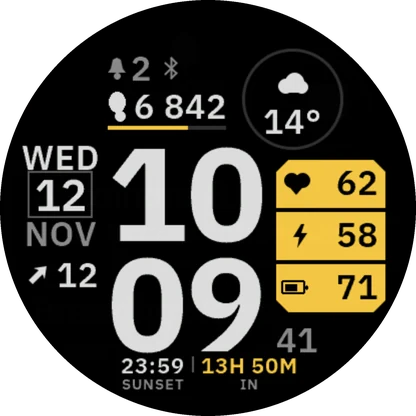
Industrial character. Everyday essentials.
$3.49 one-time · up to 3 watches
Instinct 3 AMOLED · Instinct Crossover AMOLED · fēnix 8/9/E · epix · Forerunner 70/165/170/265/570/965/970 · Venu 2/3/4 · vívoactive 5/6 · MARQ · Approach · Descent · D2
- 5.7% Always-on, Standard level
- 47 watch models
- 5 screen sizes, 360–466 px
- 5.0+ Connect IQ version
Made for
Engineers, makers and fans of industrial design.
Two layouts, one design
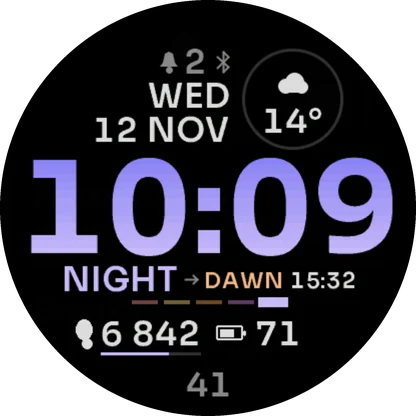
Active
The time is the biggest thing on the screen: two rows, hours over minutes, on one axis.
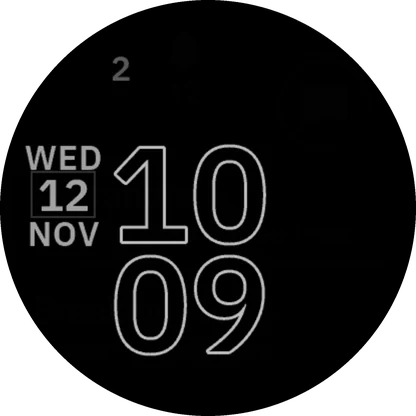
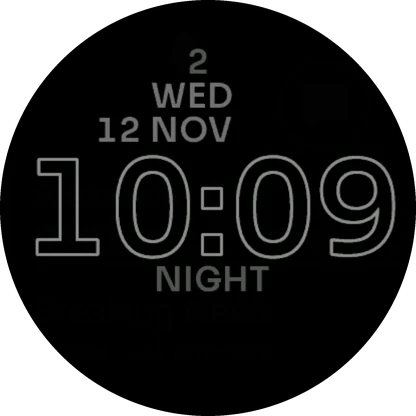
Always-on, Minimal mode
Two modes.
- Pixels lit
- 11.0%
- Shift per minute
- 3 px
Always-on brightness
Four levels in the settings; Standard is the default.
- Brightest9.1%
- Bright7.7%
- Standard (default)5.7%
- Dim2.3%
Seven slots
The three plate rows, the window and the left field take short values.
- 1StepsTop field
- 2Date column
- 3WindLeft field
- 4Sunset
- 5WeatherWindow
- 6Heart ratePlate: top row
- 7Body BatteryPlate: middle row
- 8BatteryPlate: bottom row
- Top field
- Steps · Heart rate · Weather · Battery · Body Battery · +24
- Window
- Heart rate · Weather · Battery · Body Battery · Stress · +12
- Left field
- Heart rate · Weather · Battery · Body Battery · Stress · +12
- Plate: top row
- Heart rate · Weather · Battery · Body Battery · Stress · +12
- Plate: middle row
- Heart rate · Weather · Battery · Body Battery · Stress · +12
- Plate: bottom row
- Heart rate · Weather · Battery · Body Battery · Stress · +12
- Bottom field
- Steps · Heart rate · Weather · Battery · Body Battery · +25
Settings
Change them from the watch menu or the Connect IQ app on your phone.
Appearance
- Accent color
- Orange · Lume green · Yellow · Cyan · Red · +3
- Show seconds
- On · Off
- Animations
- On · Off
- Wind unit
- Automatic · km/h · mph · m/s · knot
- Thousands separator
- Space · Dot · None
Always-on display
- Always-on color
- Gray · Lume green · Ice blue
- Brightness
- Dim · Standard · Bright · Brightest
- Always-on content
- Minimal · All fields, health data hidden
Compatibility
Designed at 416 px for Instinct 3 AMOLED and scaled by ratio to 360, 390, 454 and 466 px screens, with bitmap fonts built for each size.
See it on your watch
Pricing
Install from the Connect IQ Store and use everything free for 7 days. No key, no account.
How it works
Install
Get Kadran Placard from the Garmin Connect IQ Store.
Try for 7 days
Every feature is unlocked.
Buy a key
One-time purchase through Creem.
Paste the key
Garmin Connect app → your watch → Connect IQ → Kadran Placard → Settings → License key.
Payment, VAT and invoice handled by Creem (merchant of record) · 14-day refund window, see refund policy
Lost your key? Sign in to the Creem customer portal with your purchase email, or write to support@slck.cloud.
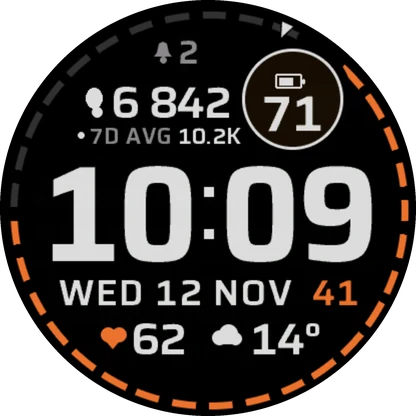
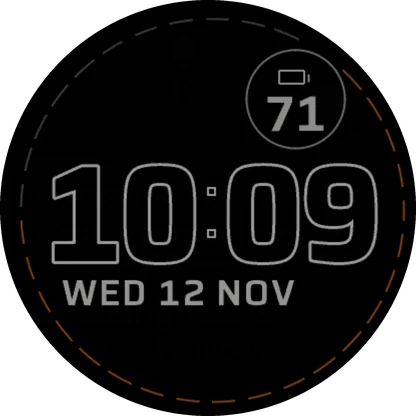
Similar faces
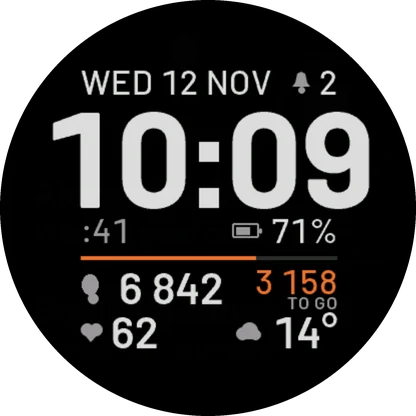
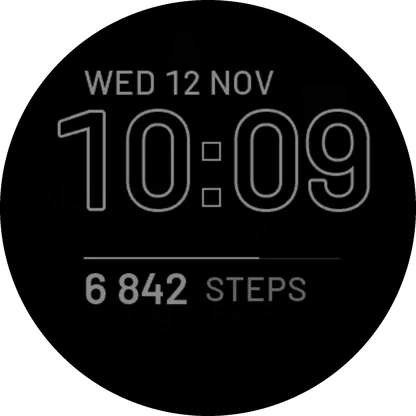
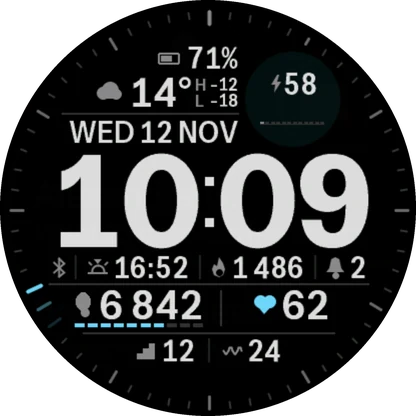
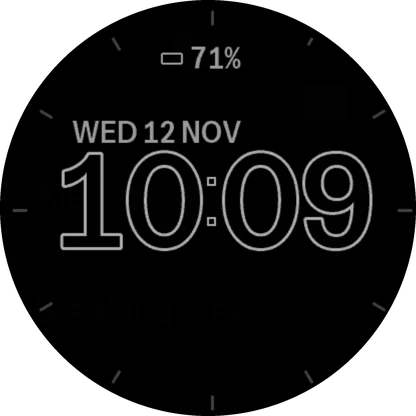
Details
See all supported models
| Watch | Screen | Connect IQ | Touch | Notes |
|---|---|---|---|---|
| Instinct 3 AMOLED 50 mm | 416 px | 6.0 | No | Reference device. Settings menu works with buttons. |
| Instinct 3 AMOLED 45 mm | 390 px | 6.0 | No | |
| Instinct Crossover AMOLED | 390 px | 6.0 | No | Physical hands sit above the screen and always show the time; analog faces hide their own hour and minute hands. Not tested on a real watch. |
| fēnix 8 AMOLED 43 mm | 416 px | 6.0 | Yes | AMOLED models only; Solar (MIP) is not supported. |
| fēnix 8 AMOLED 47 / 51 mm | 454 px | 6.0 | Yes | |
| fēnix 8 Pro 47 / 51 mm · quatix 8 Pro | 454 px | 6.0 | Yes | Also the MicroLED edition; always-on behaviour on MicroLED is not confirmed on a real watch. |
| fēnix 9 43 mm | 416 px | 6.0 | Yes | |
| fēnix 9 47 / 51 mm | 454 px | 6.0 | Yes | |
| fēnix 9 Pro 43 mm | 416 px | 6.0 | Yes | |
| fēnix 9 Pro 47 mm | 454 px | 6.0 | Yes | |
| fēnix 9 Pro 51 mm | 466 px | 6.0 | Yes | Largest layout. |
| fēnix E | 416 px | 6.0 | Yes | |
| epix (Gen 2) · quatix 7 Sapphire | 416 px | 5.2 | Yes | |
| epix Pro (Gen 2) 42 mm | 390 px | 5.2 | Yes | |
| epix Pro (Gen 2) 47 mm | 416 px | 5.2 | Yes | |
| epix Pro (Gen 2) 51 mm | 454 px | 5.2 | Yes | |
| Forerunner 70 | 390 px | 6.0 | Yes | |
| Forerunner 165 | 390 px | 5.2 | Yes | |
| Forerunner 165 Music | 390 px | 5.2 | Yes | |
| Forerunner 170 | 390 px | 6.0 | Yes | |
| Forerunner 170 Music | 390 px | 6.0 | Yes | |
| Forerunner 265 | 416 px | 5.2 | Yes | |
| Forerunner 265S | 360 px | 5.2 | Yes | Smallest layout. |
| Forerunner 570 42 mm | 390 px | 6.0 | Yes | |
| Forerunner 570 47 mm | 454 px | 6.0 | Yes | |
| Forerunner 965 | 454 px | 5.2 | Yes | |
| Forerunner 970 | 454 px | 6.0 | Yes | |
| Venu 2 | 416 px | 5.0 | Yes | Oldest supported generation. |
| Venu 2S | 360 px | 5.0 | Yes | |
| Venu 2 Plus | 416 px | 5.0 | Yes | |
| Venu 3 | 454 px | 5.2 | Yes | |
| Venu 3S | 390 px | 5.2 | Yes | |
| Venu 4 41 mm | 390 px | 6.0 | Yes | |
| Venu 4 45 mm · D2 Air X15 | 454 px | 6.0 | Yes | |
| vívoactive 5 | 390 px | 5.2 | Yes | |
| vívoactive 6 | 390 px | 6.0 | Yes | |
| MARQ (Gen 2) | 390 px | 5.2 | Yes | |
| MARQ (Gen 3) | 454 px | 6.0 | Yes | |
| Approach S50 | 390 px | 5.1 | Yes | |
| Approach S70 42 mm | 390 px | 5.1 | Yes | |
| Approach S70 47 mm | 454 px | 5.1 | Yes | |
| Approach S72 43 mm | 416 px | 6.0 | Yes | |
| Approach S72 47 mm | 454 px | 6.0 | Yes | |
| Descent G2 | 390 px | 5.1 | Yes | |
| Descent Mk3 / Mk3i 43 mm | 390 px | 5.1 | Yes | |
| Descent Mk3i 51 mm | 454 px | 5.1 | Yes | |
| D2 Air X10 | 416 px | 5.0 | Yes |
Interaction
- Press and hold a data field to open its Garmin screen, such as heart rate or weather. Works on touchscreen models: every supported model except Instinct 3 AMOLED and Instinct Crossover AMOLED.
- When the trial ends, the face shows a QR code that opens its purchase page. On watches with Connect IQ 6.0; the compatibility table shows each model's version. Other models show the address as text.
- “Animations” under Appearance in the face settings is on by default. Turn it off and the face holds still: no minute or hour transitions and no continuous motion.
Animations
| What moves | Moves on | Stays still on |
|---|---|---|
| Only the changed digit rolls each minute | All 47 supported models in the simulator | None in simulator tests |
| On the hour a slanted band of light crosses the plate | All 47 supported models in the simulator | None in simulator tests |
All of this plays only with the wrist raised. Raising your wrist shows the screen ready at once, with no intro animation; in always-on nothing moves. “Animations” in the face settings turns all of it off.
Always-on, measured
Always-on, Standard level
Simulator screen luminance at the default Standard level, measured in the simulator with the widest content (20:08, full fields, long date) on the 416 px build.
Pixels lit
Share of display pixels above 5% brightness.
Shift per minute
The whole always-on layout moves 3 px along an 8-step circle every minute, to vary pixel placement over time.
Always-on brightness
Four levels in the settings; Standard is the default.
| Level | Screen luminance | |
|---|---|---|
| Dim | 2.3 % | |
| Standard (default) | 5.7 % | |
| Bright | 7.7 % | |
| Brightest | 9.1 % | |
10% · CIQ 5+
Simulator measurement with wide content: 20:08, every slot filled and a long date. Results vary with content, level and display size.
Version history
1.1.0 · 18 November 2026
- A key bought for a different face is now named as such on the watch, instead of “key not found”.
- The license message no longer covers the purchase QR code.
1.0.0 · 17 November 2026 · First build. Five screen sizes; stacked 132 px time, date column with a framed date window, accent plate with three rows, status line with notifications and Bluetooth, step goal bar, window arc; seven selectable slots, new wind (with direction), UV index and chance of rain data, wind unit setting, two always-on modes (Minimal and All fields), 8 accent colors, 3 always-on colors, on-watch settings menu, license trial and activation.
- Sunset row: with sunrise/sunset in the bottom field, you see the local event time and the time left (23:59 | 3H 51M), split by a thin divider.
- Sunrise and sunset times follow your 12/24-hour setting.
- Always-on window: choosing None removes the ring completely.
- Always-on window: battery shows a % sign and temperature keeps its degree mark.
Questions
Where do wind, UV and chance of rain come from?
From the Garmin Connect app on your phone, together with the weather. Without that connection these fields show --, with no error message. Some older watches, the Venu 2 family, do not provide the UV index at all, so it always shows -- there. The wind arrow points where the wind blows to. The face shows the number without a unit: it follows your distance units (km/h or mph), or you set km/h, mph, m/s or knots in settings.
What is the difference between the two always-on modes?
Minimal, the default, keeps the outlined time, the date column, and the bell or Bluetooth icon when needed, at 5.7% measured luminance. All fields keeps every slot too, dimmed, with the plate as an outline, so you can read your data without waking the watch. It lights more pixels than Minimal. Choose the mode in settings under Always-on content.
What stays on in always-on?
In Minimal mode: the outlined time, the date column, and the bell with the notification count, or the crossed-out Bluetooth icon when the phone link drops. In All fields mode every slot stays too, dimmed, with the plate as an outline. Heart rate, Body Battery, stress and Pulse Ox never show in always-on, in either mode: the view refreshes once a minute and can be read from across the table. Your data stays on the watch, see the Privacy.
What happens when the battery runs low?
At 15% or less, the battery row on the plate turns inside out: black inside a frame, with the icon and number in the accent color. If battery is in another slot, it turns to the accent color there. If it is in no slot, the third plate row shows it while the battery is low. The rest of the layout stays where it is.
How do I change what each slot shows?
On the watch, open the face's settings menu (no phone needed): the three plate rows, the top field, the window, the left field, the bottom field, the always-on content, seconds and colors. Or in the Garmin Connect app: your watch → Connect IQ → Kadran Placard → Settings, where you also set the wind unit.